How to Edit a Canva Photo Collage Template (Beginner’s Guide)
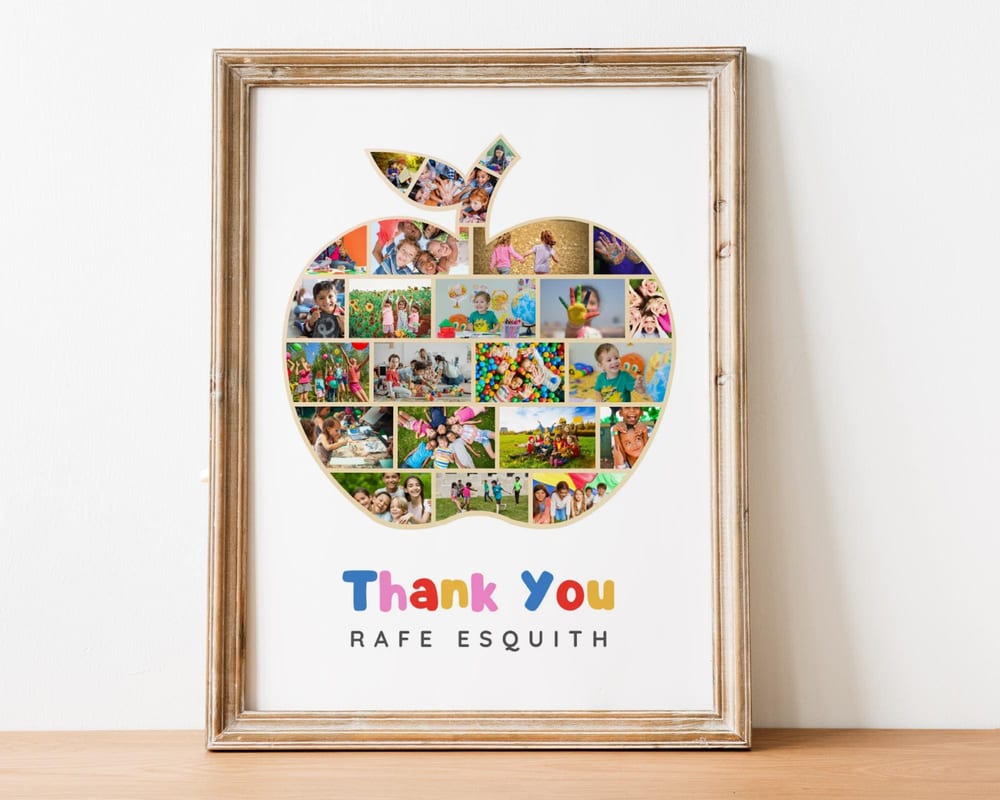
Editable Canva templates are the fastest way to make a photo collage — the design is done, so you only add your photos and text. But if you’ve never used one, the first few clicks can be confusing. This guide walks you through it start to finish: opening the template, replacing photos, editing text, and downloading a print-ready file. No design experience needed.
Step 1: Open the template link
After you buy a template, you’ll get a Canva link (usually in the download file or your order). Click it and Canva opens a message like “You’ve been invited to edit a template” — click Use template (or “Open in Canva”). This creates your own private copy; the original stays untouched, so you can’t break anything.
You’ll need a free Canva account. If you’re not signed in, Canva will prompt you — sign up takes a minute and the free plan covers everything here.
Step 2: Replace the photos
Upload your images. In the left panel, open the Uploads tab and click Upload files to add your photos from your phone or computer.
Drag each photo into a slot. Drag an uploaded image directly onto a photo frame in the design — it snaps into the shape automatically, whether that’s a heart, a number, or a letter.
Reposition inside the frame. Double-click a placed photo to zoom, pan, or straighten it inside its slot, then click Done.
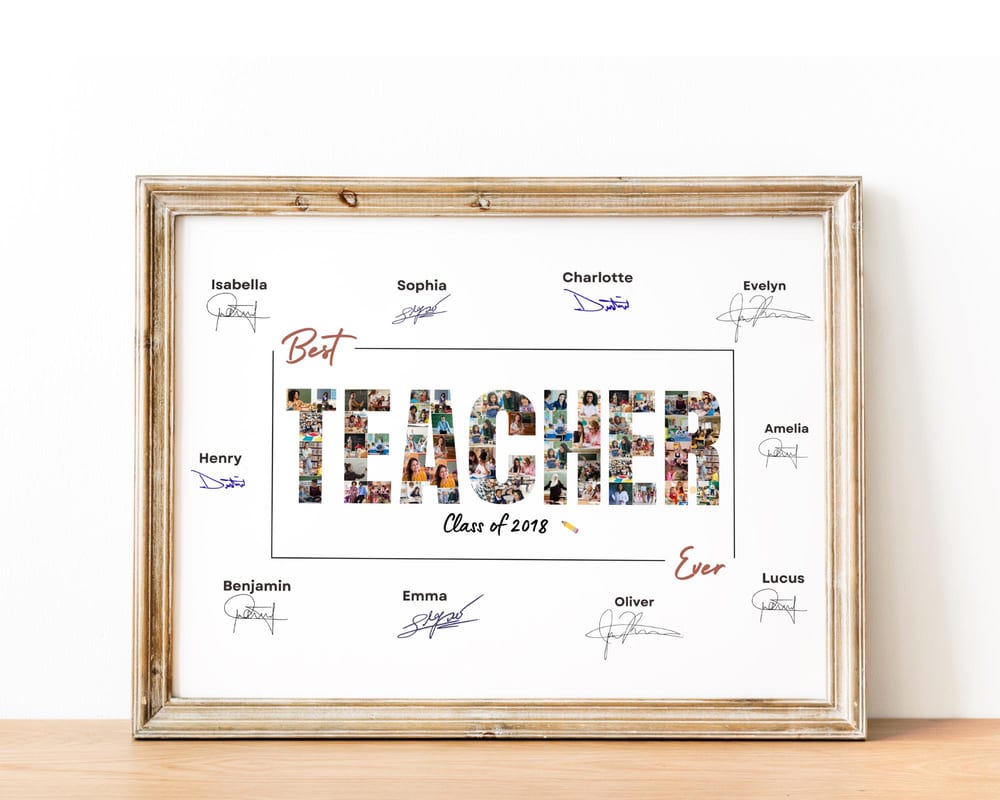
Step 3: Edit the text
Click any text to select it, then type to replace the placeholder — a name, date, or short message.
Change the font or color from the top toolbar if you like, but you don’t have to; the template’s styling is already set to look good.
Keep edits light. The layout is designed to balance — resizing or moving elements a lot is where beginners run into trouble.
Step 4: Download a print-ready file
Click Share → Download in the top-right. For printing, choose PDF Print (sharpest) or a large PNG. Your file saves ready to print at home, at a shop, or online — see our guide to printing a photo collage.
That’s it. The whole process usually takes under 15 minutes, and you can reuse the same template as many times as you like.
Frequently asked questions
How do I open a Canva template I purchased?
Click the Canva link from your download or order, then choose “Use template.” Canva creates your own editable copy — you’ll need a free Canva account.
How do I replace the photos in a Canva template?
Open the Uploads tab, upload your images, then drag each one onto a photo frame in the design. It snaps into the shape; double-click to reposition inside the frame.
Do I need Canva Pro to edit a template?
No. A free Canva account is enough to open the template, add your photos and text, and export a print-ready file.
Can I edit a Canva template on my phone?
Yes. The Canva mobile app works the same way — open the template link, upload photos from your camera roll, drag them into place, edit text, and download.