How to Make a Photo Collage in Canva (Step-by-Step)
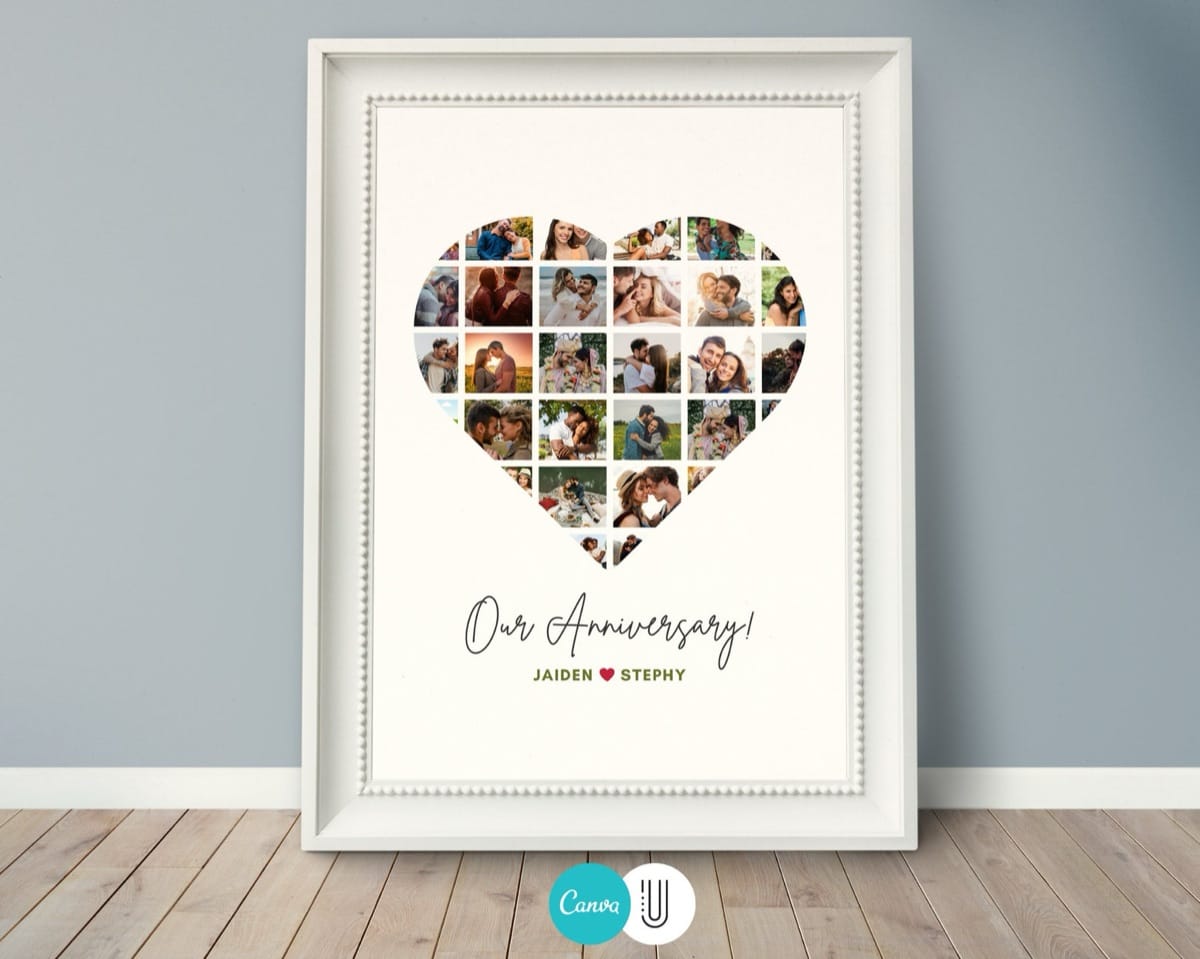
Canva is the easiest way to make a photo collage, and you can do it for free — no design background required. This guide walks you through both ways to do it: building one from scratch with Canva’s grids, and the faster route of starting from a ready-made template so you only have to drop in your photos.
By the end you’ll have a high-resolution collage you can print at home, at a local shop, or through an online print service.
What you’ll need
A free Canva account and the photos you want to use, saved on your phone or computer. That’s it. Canva’s free plan covers everything in this guide, including exporting a print-quality file.
If you want to skip most of the work, you can also start from an editable template — more on that below.
Option 1: Build a collage from scratch (5 steps)
1. Create a new design. Click Create a design and choose a size. For a printed collage, a common choice is 16×20 in or A2; for social media, pick the square or story preset.
2. Add a grid. In the left toolbar, search Grids under Elements and pick a layout with the number of cells you need. Grids keep your photos evenly spaced and let you drag images straight into each cell.
3. Drop in your photos. Upload your images from the Uploads tab, then drag each one onto a grid cell. Double-click any photo to reposition or zoom it inside the cell.
4. Adjust spacing and add text. Use the spacing control to set the gap between photos, then add a name, date, or short message from the Text tab to personalize it.
5. Download. Click Share → Download, choose PNG (or PDF Print for the sharpest result), and save. Your collage is ready to print or post.
Option 2: Start from a template (the fast way)
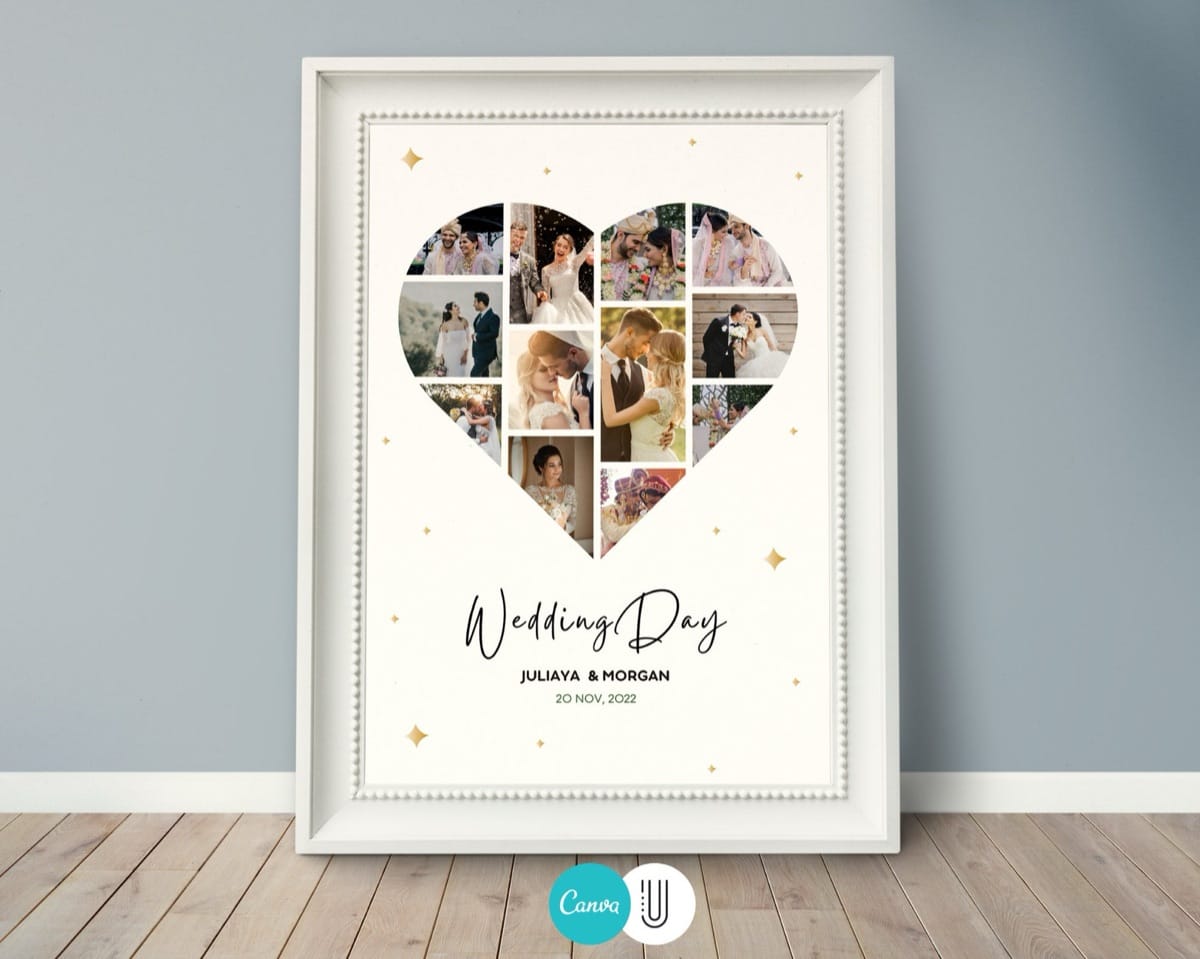
Building a shaped collage — a heart, a number, a letter, or a silhouette — from scratch is fiddly. This is where a template saves you an hour. With an editable template, the layout, shape, and styling are already done; you just swap in your photos and edit the text.
The heart collage below is a good example: every photo is masked into the heart shape automatically. You open the template in Canva, drag your pictures into place, and download — no manual masking required.
Tips for a collage that looks professional
Use photos with similar lighting. A mix of bright and dark photos looks busy; a consistent tone looks intentional.
Leave a little breathing room. A small, even gap between images reads as cleaner than photos jammed edge to edge.
Export at the highest quality. Choose PDF Print or a large PNG so the collage stays crisp when printed at size.
Once you’ve made one, the same steps work for any occasion — browse our template collections for ready-made layouts you can finish in minutes.
Frequently asked questions
Is Canva free to make a photo collage?
Yes. Canva’s free plan lets you build a collage with grids, add your own photos and text, and download a high-resolution file at no cost.
Do I need design skills to make a collage in Canva?
No. If you can drag and drop a photo, you can make a collage — especially if you start from a template, where the layout and styling are already done for you.
What size should a photo collage be for printing?
For a wall print, 16×20 in or A2 is popular. Design at that size in Canva and export as PDF Print so the image stays sharp when printed.
How do I make a heart or number shaped photo collage?
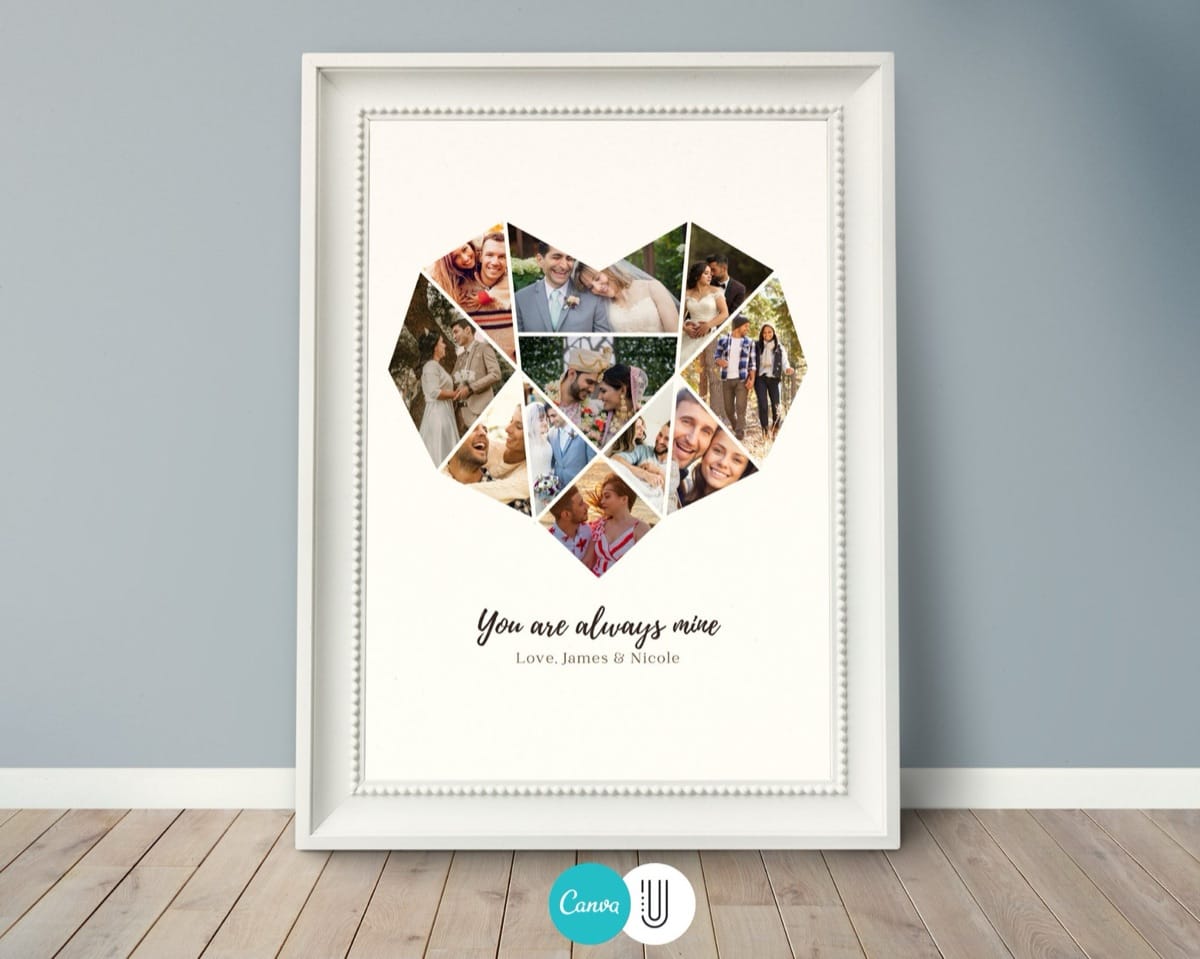
Shaped collages are much easier with a template, which masks your photos into the shape automatically. You just add your pictures in Canva and download.